
Streamline your workflow
OLPC allows you to manage your protection applications efficiently. Integrated tools for handling medical conditions and submitting digital Declaration of Health forms are available. The user-friendly interface provides progress updates, ensuring you stay informed. Access training videos, webinars, or contact our protection sales team for more information.
Stay on top of your pipeline and nurture existing clients with instant notifications for lapses, bounced direct debits, and cancellations, giving you the opportunity to ensure your clients retain the cover they need, rather than simply cancelling.
In 2025, our recent update allows you to quickly update payment details in the Existing Business Agent Hub (EBAH) for your customers. You can now easily change payment collection dates, enter complete bank details, and select collection dates for any policy arrears.

“Continuing to enhance and streamline our processes and platforms is a core priority for us, both to aid the business development of our intermediary partners, and to ensure better customer experience and outcomes.”
- Julie Godley, Director of Intermediary, Legal & General Retail
How to use OLPC
Getting Started: Setting Up Your contact preferences
Quick overview of how to ensure your global contact preferences are set correctly to receive updates on your pipeline. / 01:24
Getting Started: Bespoke your contact preferences for an application
Quick overview of how to ensure your individual contact preferences are set correctly to receive updates on your pipeline. / 01:24
Getting Started: Your protection dashboard
An overview of our brand new Protection Dashboard, a simpler, more streamlined way for you to manage your customer applications. / 02:54
New Business: How to get a quote
Quick guide on how to get started on doing a quote on OLPC. / 02:24
New Business: Managing your application
An overview of how to manage your application on OLP Connect. / 03:38
New Business: How to requote an application
An overview on how to requote a client application in OLPC. /
New Business: How to enter a start date
A quick demo on how to enter a start date in OLPC. / 01:24
New Business: How to accept a decision
An overview of how to accept a decision if needed. / 01:24
New Business: How to start a policy
A quick overview of how to start a new policy on our system. / 01:24
New Business: Cancelling an application
An overview on how to cancel an application in OLP Connect, to ensure you keep your pipeline up to date / 02:27
New Business: How to access documents in OLPC
An overview of how to view and access documents within OLPC. / 01:24
New Business: Digital declaration of Health
An overview of how to utilise of digital process that empowers you to swiftly and effortlessly complete the Declaration of Health, ensuring your customer is on risk sooner. / 01:24
New Business: Hand off
An overview how to utilise the hand off, what you will see and your customer can expect to see when they go to complete the questions, then how you can complete the submission of the application. / 01:24
Existing Business: Existing Business Agent Hub - Further Improvements
An overview of the additional improvements added to our Existing Business Agent Hub including features to help you keep track of your clients’ policies, payment history, and claim status. / 01:24
Existing Business: Existing Agent Business Hub
An overview of the improvements added to our Existing Business Agent Hub giving you more information about each policy on screen. / 01:24
Existing Business: Updating Payment Details
In this demo we talk through in detail how to find your clients policy, update your clients payment details and manage outstanding premiums in arrears. / 03:56
Existing Business: Cancelling a Policy
An overview on our brand-new cancellation feature, allowing you to cancel on behalf of your customers with ease, as far as six months ahead. / 03:36
More from OLPC
Frequently asked questions
Find answers to common questions about using OLP Connect. This section covers various topics to help you navigate and make the most of our system efficiently.
There a two ways in which you can check if a live policy has been placed in to trust. You can do this either in the Protection Dashboard or in the Existing Business Agent Hub (EBAH).
Protection Dashboard
- On the ‘Quotes & applications’ tab, search for the application using the AN reference number or customer information
- Click into the application record and scroll down to ‘Product Details’
- Locate the ‘Trust and ownership’ field under each product. The status will show if the policy is in trust or not.
EBAH
- Click into the ‘Existing policies’ tab
- Retrieve the policy by either entering the policy number into the search box or using the advanced search option
- Click into the policy record and scroll down to the ‘Product Details’ section
- Locate the ‘In Trust’ field under each product. The status will show if the policy is in trust or not.
The easiest way to place a policy in a trust is by completing the online trust form built into the application before you put the policy live. If you have selected a paper trust, OLPC will only show the policy as being in trust once we have received and accepted the paper trust (we do accept scanned trusts).
This ensures the information provided by them is accurate. This extra quality check helps to reduce the likelihood of a future claim being declined, whilst providing your customer with the correct cover terms and premium for their needs now. We request a post-sale medical report for 1 in 10 customers and 80% lead to no changes to the policy. If a change is made to a customer’s policy, you can check this in OLPC by following these steps:
Login to OLPC
- Select the completed tab in the protection dashboard
- Type ‘alteration’ in to the filter box (this will show all policies with the status of ‘Policy Alteration’)
- Click in to the policy and scroll to ‘Outstanding Evidence’
- Check to see if there is any item / description referencing SMR
- On the Protection Dashboard ‘Quotes & applications’ section, use the search function to find the application
- Click on the application reference number to view the Application Management summary
- On the summary page, in the top right you will see the 'Lock for Editing Option'
- Select 'Lock for Editing'- doing this will take the application out of read only mode. Scroll down to the 'outstanding information' section.
- Select accept offer. You will be taken to the decision screen. Accept the offer.
- Continue to the product summary page and provide a start date
- Once completed go to the menu button at the top right and select ‘Manage application’ to return to main screen
- On the Protection Dashboard ‘Quotes & applications’ section, use the search function to find the application
- Click on the application reference number to view the Application Management summary
- On the summary page, in the top right you will see the 'Lock for Editing' and 'View Application' options
- Select 'Lock for Editing' - this will take the application out of read only mode
- The 'View Application' option will now appear as 'Edit Application'
- Select ‘edit application’ to make changes to your customers application
- Once completed go to the menu button at the top right and select ‘Manage application’ to return to main screen
When an application is made for life cover for inheritance tax planning purposes, OLPC will now mandate that we see a trust form before the policy can be put live on the system. This can either be done through completion of the online trust (where appropriate) which is included in the application, or by sending us a copy of the completed trust deed.
We believe it is in the customer's best interests to do this, as it mitigates any risk of the policy paying into the customer's estate on death and becoming liable to IHT.
The reason why we request evidence is due to application disclosures or medical underwriting limits.
We’ll automatically request certain medical evidence from your client if they’re a specific age or request a certain level of cover, even if they have no known medical conditions. This ensures we apply the correct terms based on complete and accurate information at the application stage.
This automatic evidence also protects your client if they need to claim, as it factors any increased risks into the cost of their cover.
View our full guide here
You can check this in OLP Connect at your convenience by following the steps below
- In the Protection Dashboard ‘Quotes & applications’ section, use the search function to find the application.
- Click on the application reference number to view the Application Management summary.
- On the summary page, you will see the client details and products.
Scroll down to the 'outstanding evidence' section. - Here, you can see the evidence we’ve received. For more details, select 'documents' in the blue navigation menu to view all issued and received items.
- Health Reports are linked, and clicking on them provides more information, including examination dates for Nurse Screenings
You can check this in OLP Connect at your convenience by following the steps below
- In the Protection Dashboard ‘Quotes & applications’ section, use the search function to find the application
- The status will show as ‘live’ or ‘Live CYD Outstanding’ indicating the application is now in force
- To find the policy number, click on the application reference number and you are shown the Application Management summary
- Scroll down the page to the ‘Product details’ section and the policy number is shown
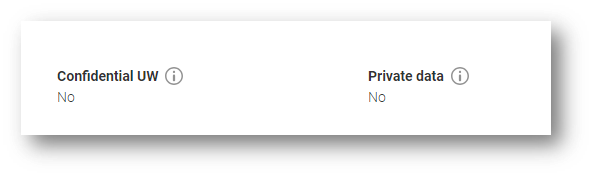
Confidential Underwriting - Sometimes, we receive medical information that wasn’t included in your client’s application, which could lead to special underwriting terms. We understand it can be frustrating when we can’t explain our decision. To help, we use a ‘Confidential Underwriting’ marker in OLP Connect. You can find this marker in the client details section of the Application Management summary. If the marker shows ‘Yes’ we are unable to share the reason for the decision with you.
Private Data – Within OLP Connect, you have the option to hand-off the application to the customer for them to complete in their own time. The customer can confirm if they wish for their health and lifestyle information to be private. If they choose this option, the private data marker will show as ‘Yes’ meaning that you will not be able to view their medical disclosures.
You can find the decision in OLP Connect by searching for the client’s application in the Protection Dashboard.
Within the Application Management summary, scroll down to ‘Product Details’ where you can see the ‘Underwriting decision’ heading. Where applicable, the decision maybe hyperlinked and clicking on it takes you to the decision page of the application where you can view the underwriting decision and any associated changes that may have been made.